Assigning a Score to Tags
2 min read
You can now assign a score to your tags. They can be positive or negative numbers (+/-). This can help traders visualize how certain tags perform. With the use of the scoring, you can reference the scores in your tags through our various dashboard widgets, which will help the trader understand how well the tags are performing relative to their score. This is a very useful tool to track your emotions. Negative tags like “FOMO” or “REVENGE” should have a negative score. Positive tags like “CUT LOSS EARLY” for example should have a positive score. Plotting the score of your trades in a a chart will give you insight on when you are trading well or when you are tilting, regardless of your PnL.
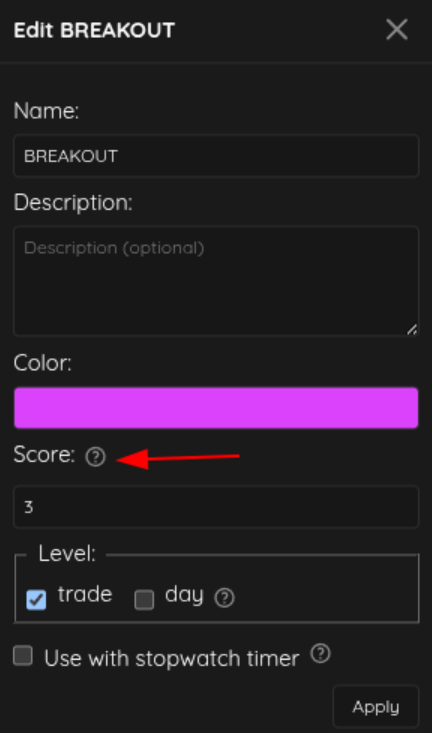
Assign a score value to your tags in the tag settings section. This value can be any positive or negative number. For example, you might have a “FOMO” tag with score=-1, and a “PATIENT” tag with score=+1.
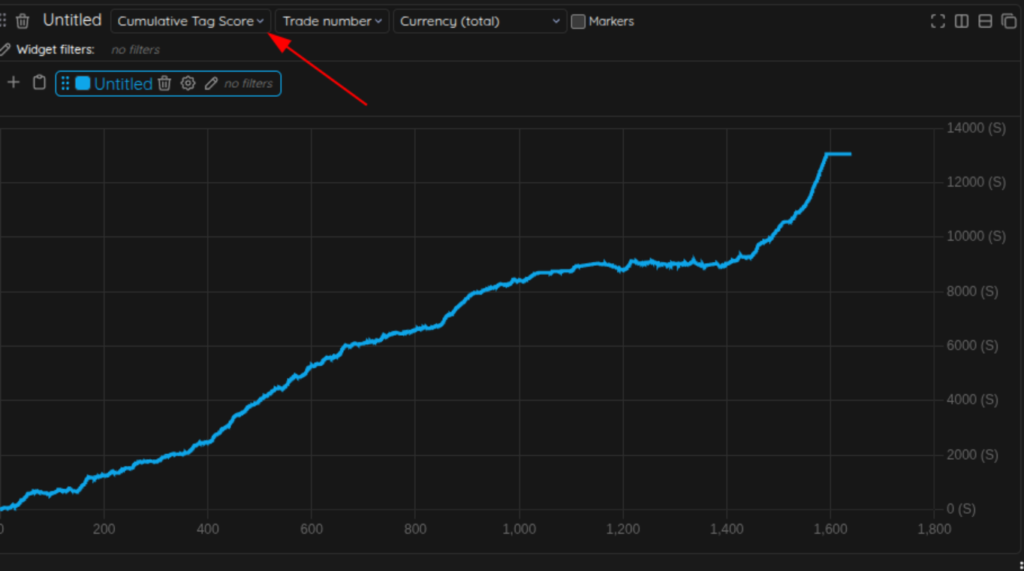
The Tag Score of each trade is calculated as the sum of all the score of the tags attached to it. You can reference this value in your dashboard widgets, here is an example with the line widget. Instead of plotting the PnL, it’s plotting the tag score of the trades. The letter S next to the score number on the Y axis stands for ‘Score’.
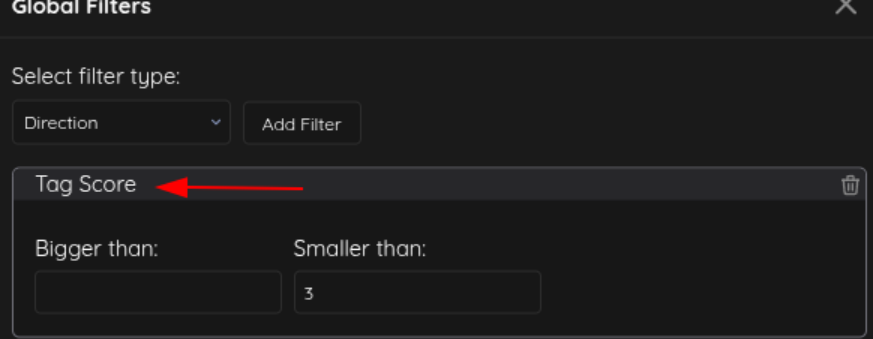
You can filter your trades by their tag score:
You can use the tag score in all widgets as well, including Cumulative Tag Score and Average Tag Score.
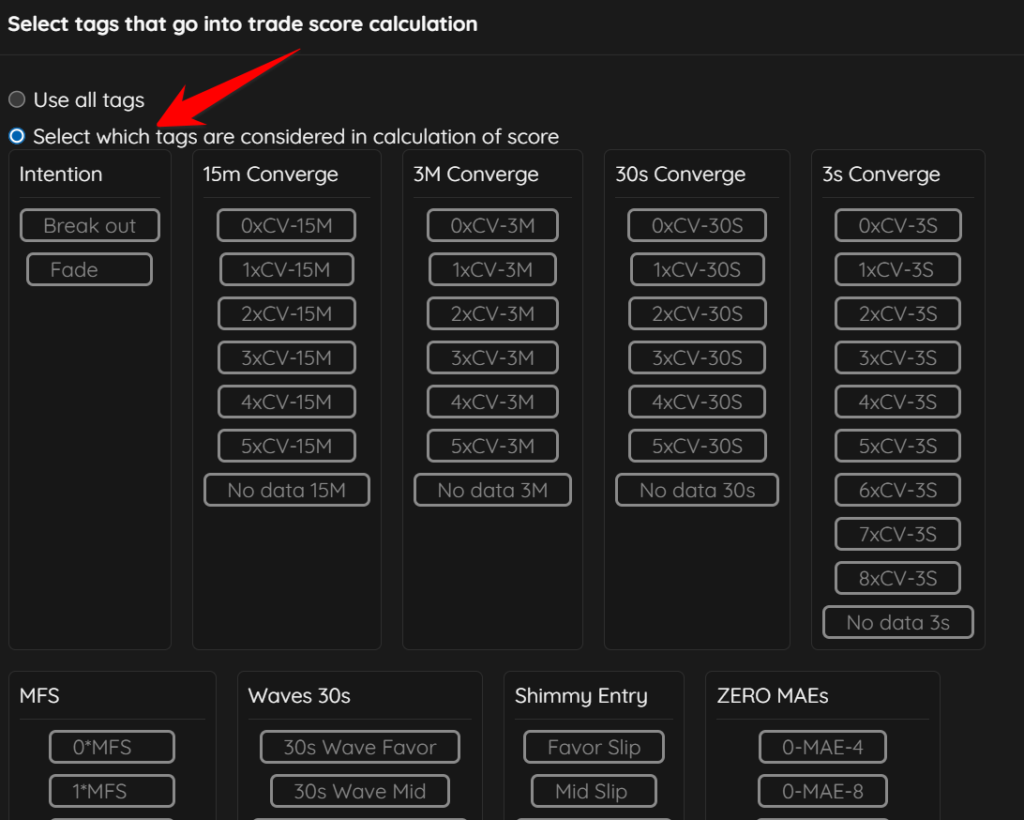
By default, the tag scoring system averages all of the tag scores for every trade. However, you can specify specific types of tags or tag groups that you wish to calculate the tag score. You can make this change on the series level in the widget. If you click on the gear icon for the series, you can then click the button that says ‘tags’, which will allow you to select the specific tags or tag groups that you wish to include in your tag score analysis.
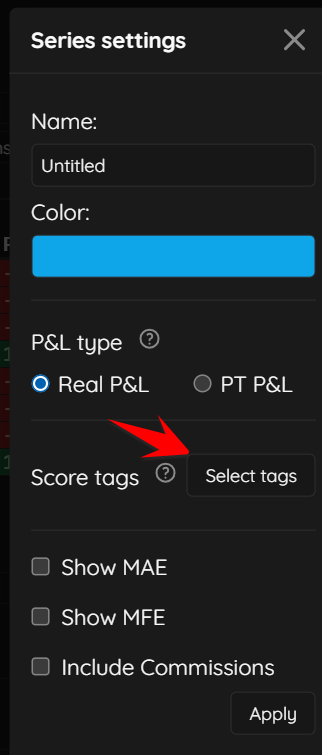
In the window that appears, select the option for ‘Select which tags are considered in calculation of score’, which will then show you all of your tags. You can then click the specific tags that you wish to include in the score, and click apply to save it and view the results.