Creating Checklists
2 min read
The CheckMate checklist system is more than a checklist – it’s an entire trading system builder that allows traders to build out their strategies in a workflow/question and answer system. This tutorial covers how to access the CheckMate Checklist system, as well as how to become familiar with the different toolbars and options. While this article does cover many of the features, the video below, is more in-depth and we recommend that you watch it to become more familiar with the system.
Creating & Accessing Checklists #
- On the left navigation menu, click on the gear icon, then click ‘Checklists’.
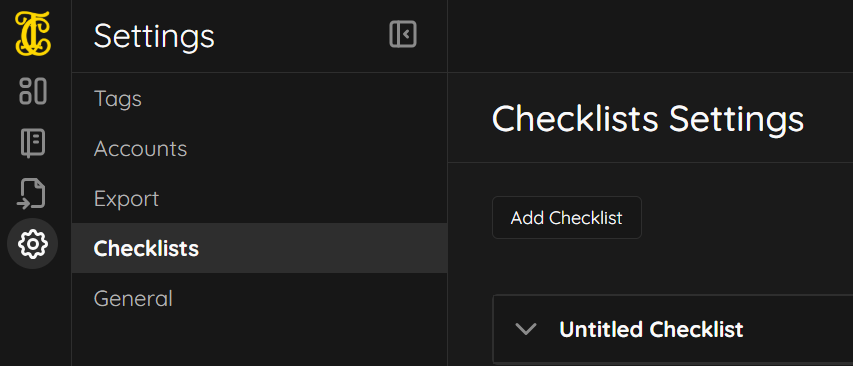
- Click the ‘Add Checklist’ button to add a new checklist.
- Double click on the name of the checklist to edit it (in this case, double click on Untitled Checklist to change the name).
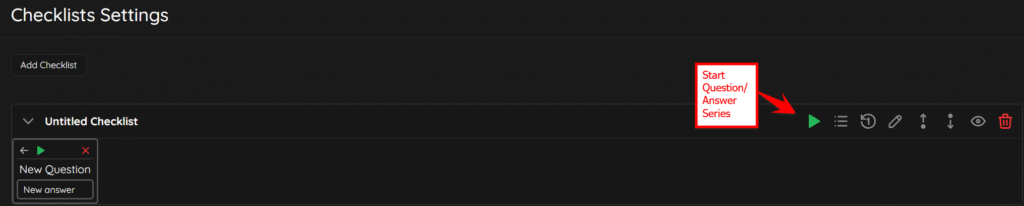
- The green play button starts the question/answer series that can then be edited and built out with your trading system.
Editing Checklists #
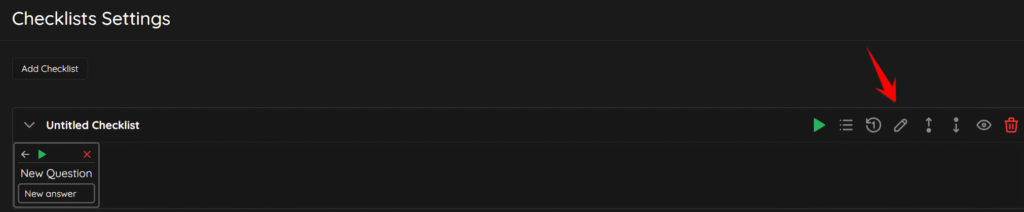
To edit your checklist, click on its name, then click the pencil icon, as indicated in the screenshot:
Rearranging Checklists #
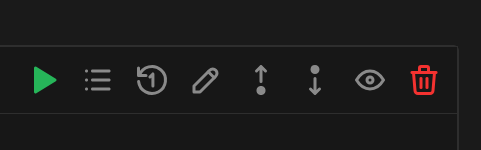
To rearrange your checklists, simply click on the up or down arrow in the checklist settings screen.
Hiding Checklists #
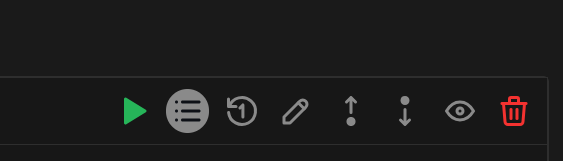
To hide a checklist, from the settings screen, click the “eye” (visibility) icon. This will toggle the checklist as visible/invisible.
Deleting Checklists #
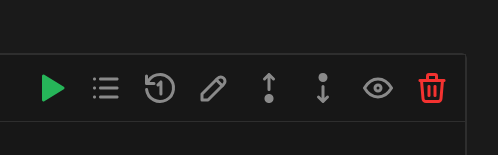
To delete a checklist, from the checklist settings screen, click the garbage can icon. Note that if you delete a checklist, you will not be able to recover it.
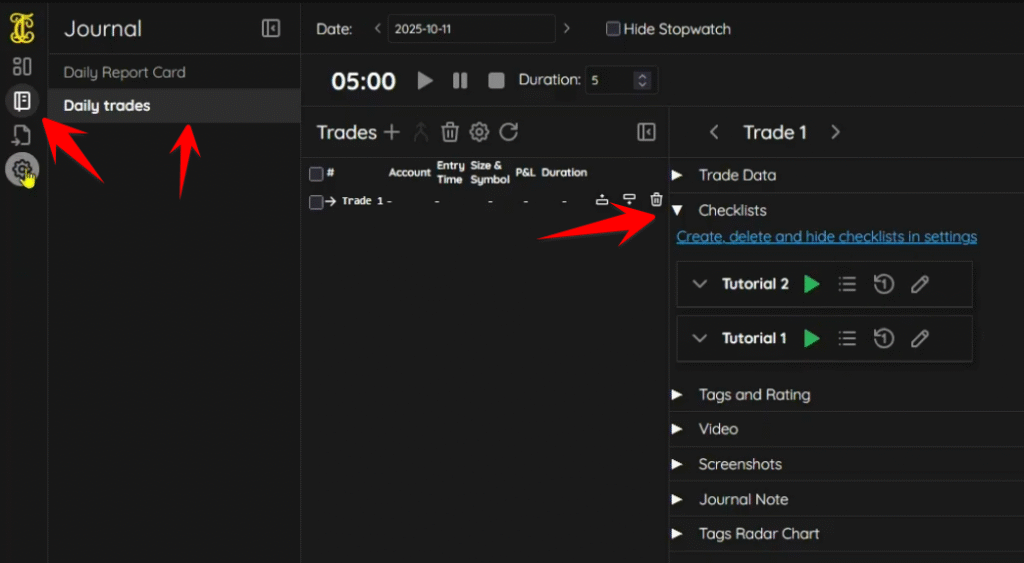
Accessing Checklist from Daily Trades #
You will most likely be accessing and modifying your checklists from the Daily Trades section and not from settings. Click on the journal icon on the left navigation menu, then click Daily Trades. Add a trade or import a trade, then expand the Checklists menu, and you will see your available checklists.